Google Ads is known as one of the most effective online marketing channels in the world, and its popularity continues to grow every day. One of the most common challenges advertisers face after setting up a campaign is the issue of receiving no impressions, along with questions such as:
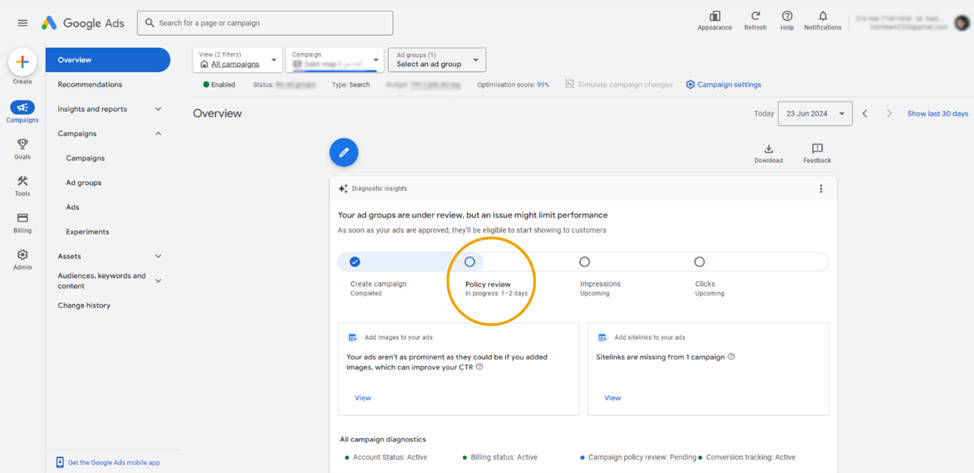 Please note that as long as all required parameters are correctly set, your campaign will receive impressions. For further learning, you can watch the free Search Ads+ training videos available on the HDM Agency YouTube channel. You can follow the HDM YouTube channel through this link.
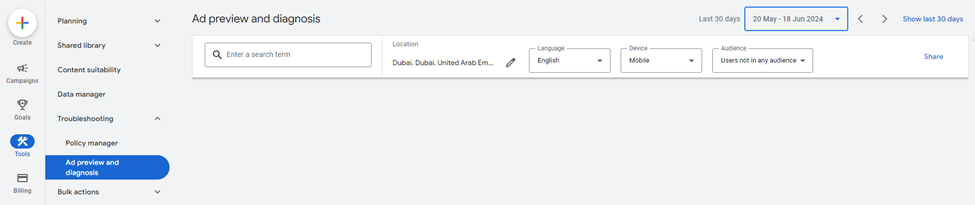
 You can also use the Ad Preview and Diagnosis tool in your dashboard to check whether your ad is appearing for specific search keywords. Simply go to the Tools section, click on Ad Preview and Diagnosis, and enter the keyword or search phrase you want to test. Make sure to adjust the Location and Language settings to match the targeting of your campaign.
A common question is: “Why doesn’t my ad appear in Ad Preview?”
This tool is designed to show advertisers how their ads would appear in real search results. It simulates the search results page without affecting your campaign performance or causing additional impressions.
The Ad Preview tool is located under the Tools menu, and you can access it by selecting Ad Preview and Diagnosis.
However, in Iran, this tool often does not display the ad correctly and usually shows the error: “Your ad isn’t showing.”
You can also use the Ad Preview and Diagnosis tool in your dashboard to check whether your ad is appearing for specific search keywords. Simply go to the Tools section, click on Ad Preview and Diagnosis, and enter the keyword or search phrase you want to test. Make sure to adjust the Location and Language settings to match the targeting of your campaign.
A common question is: “Why doesn’t my ad appear in Ad Preview?”
This tool is designed to show advertisers how their ads would appear in real search results. It simulates the search results page without affecting your campaign performance or causing additional impressions.
The Ad Preview tool is located under the Tools menu, and you can access it by selecting Ad Preview and Diagnosis.
However, in Iran, this tool often does not display the ad correctly and usually shows the error: “Your ad isn’t showing.”
 Another very common error is Destination Not Working.
You will see this disapproval when your URL is not functioning properly—meaning the link is broken, the page does not load, or the destination cannot be reached.
In some cases, the issue is simply a typing mistake in the URL you manually entered. In such situations, all you need to do is correct the spelling and resubmit the ad.
Another very common error is Destination Not Working.
You will see this disapproval when your URL is not functioning properly—meaning the link is broken, the page does not load, or the destination cannot be reached.
In some cases, the issue is simply a typing mistake in the URL you manually entered. In such situations, all you need to do is correct the spelling and resubmit the ad.
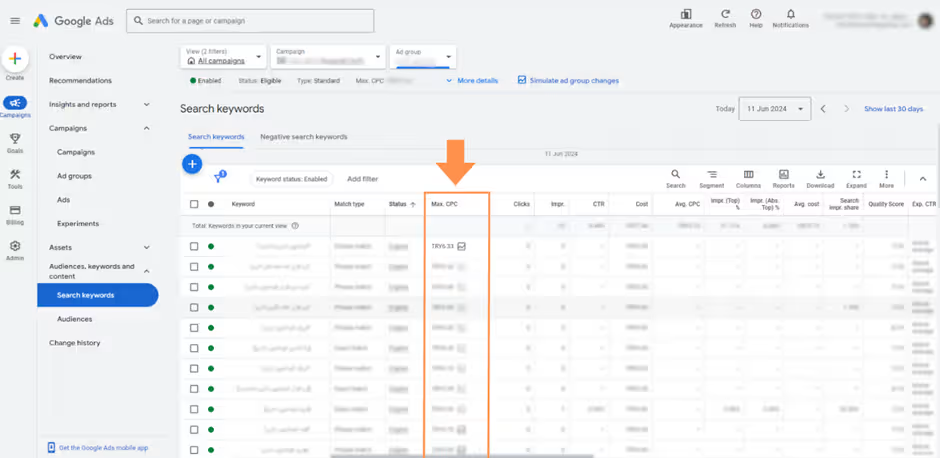
 If the campaign is using Manual CPC, you can easily adjust the bid for each keyword by going to the Search Keywords section and updating the Max CPC column for every individual keyword.
 In Persian-language campaigns, the minimum bid required for impressions is usually around 0.1 TRY.
 There are also additional factors related to a low budget that can affect your ad delivery.
One of the most common issues is having a small budget compared to the large number of keywords in the campaign, which can create delivery limitations.
In other cases, high keyword bids may also cause restrictions. When this happens, you will see Lost IS (Budget) at the campaign level.
Sometimes, this impression loss due to low budget (Lost IS by Budget) happens because many of your keywords are using Broad match. Keep in mind that this can reduce the volume of impressions you are eligible to receive, also known as your Eligible impressions.
There are also additional factors related to a low budget that can affect your ad delivery.
One of the most common issues is having a small budget compared to the large number of keywords in the campaign, which can create delivery limitations.
In other cases, high keyword bids may also cause restrictions. When this happens, you will see Lost IS (Budget) at the campaign level.
Sometimes, this impression loss due to low budget (Lost IS by Budget) happens because many of your keywords are using Broad match. Keep in mind that this can reduce the volume of impressions you are eligible to receive, also known as your Eligible impressions.
 Make sure to also include the language of the country you are targeting.
 For example, if the target location of your campaign is the United Arab Emirates, you should add Arabic as well, since many users’ devices in that region are set to Arabic.
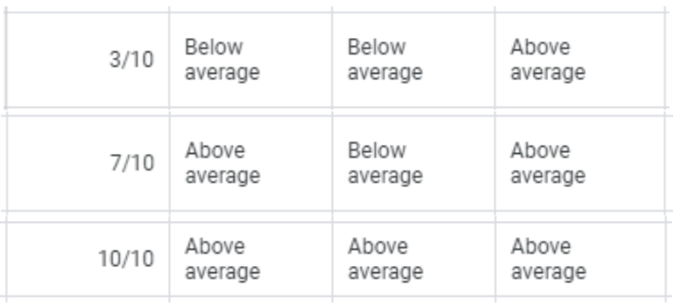 A low Quality Score indicates that your ad relevance, expected CTR, or landing page experience is weak, which reduces your ability to enter auctions and therefore decreases your visibility.
Some of the most important factors that affect your Quality Score are Expected CTR (Exp. CTR), Landing Page Experience, and Ad Relevance.
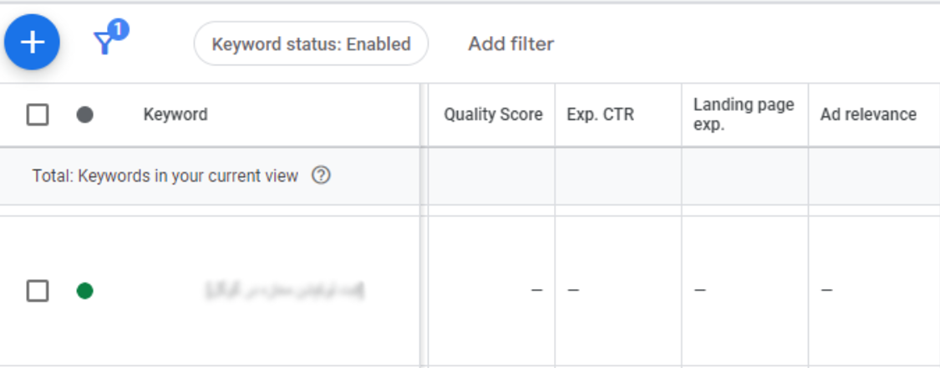
Also note that at the beginning of a campaign, your keywords typically do not have a Quality Score, and this field will appear as a dash (—) until enough data is collected.
A low Quality Score indicates that your ad relevance, expected CTR, or landing page experience is weak, which reduces your ability to enter auctions and therefore decreases your visibility.
Some of the most important factors that affect your Quality Score are Expected CTR (Exp. CTR), Landing Page Experience, and Ad Relevance.
Also note that at the beginning of a campaign, your keywords typically do not have a Quality Score, and this field will appear as a dash (—) until enough data is collected.
- Why isn’t my campaign getting any impressions?
- Why isn't anyone seeing my ad?
- What might be misconfigured?
Please note that as long as all required parameters are correctly set, your campaign will receive impressions. For further learning, you can watch the free Search Ads+ training videos available on the HDM Agency YouTube channel. You can follow the HDM YouTube channel through this link.
- Date Range
- Filters
- Campaign Run/Pause Status
- Ad Group
- Ad
- Errors and Ad Disapproved
- Keywords
- Available Funds (Account Balance)
- Account Verification and Suspensions
- Bid
- Budget
- Bid Adjustment
- Ad Schedule
- Negative Keywords
- Language
1. Date Range
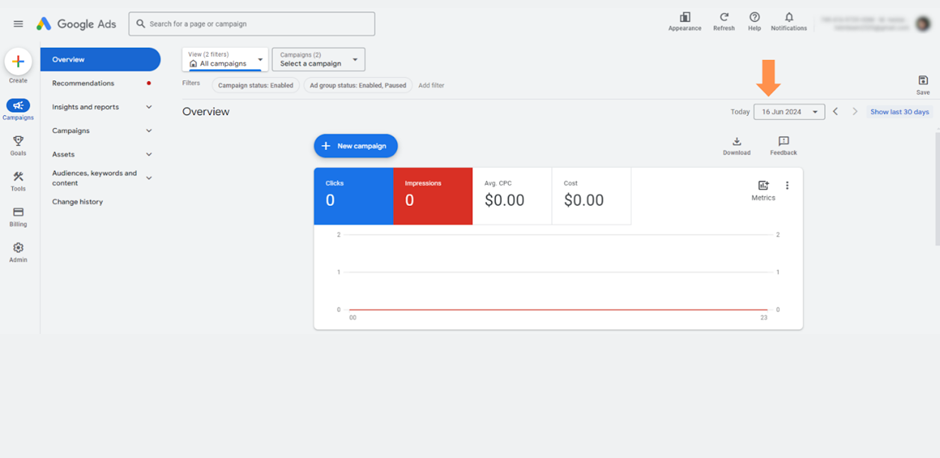
The first and most common reason you might see zero impressions on your dashboard is selecting the wrong date range. It’s possible that the date range you’ve chosen falls outside the active date range of your Google Ads campaign, meaning it is outside the campaign’s eligible timeframe. To put it simply, imagine your campaign was launched on May 25, but your dashboard is currently set to May 23. Naturally, you will see zero impressions because your selected date range is earlier than the campaign start date.
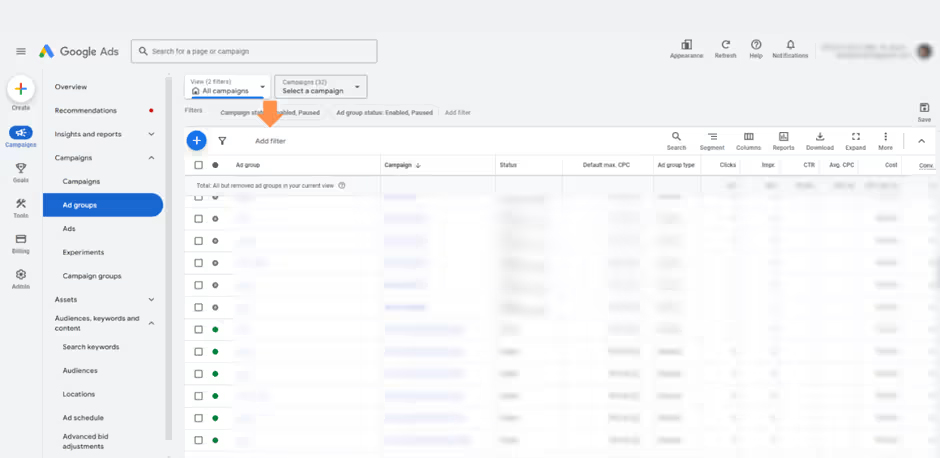
- Filters
3. Run / Pause Status
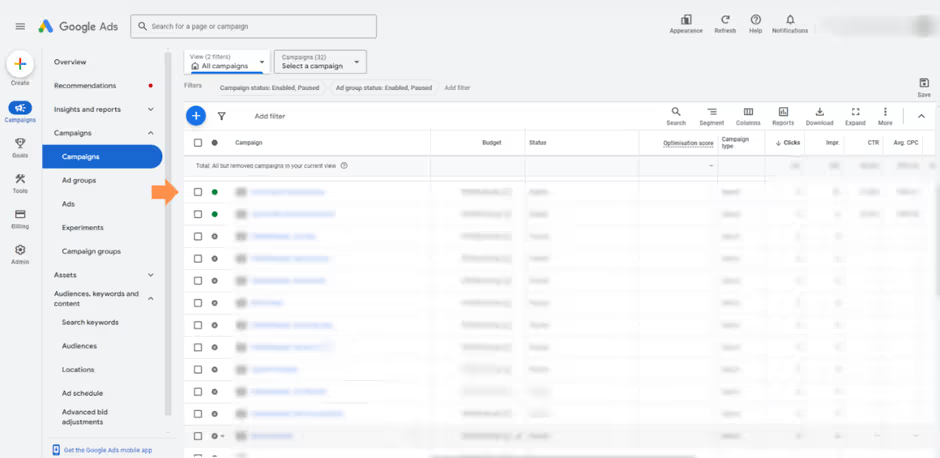
In many cases, this is exactly where the problem comes from. Your Google Ads campaign may simply not be running. If the campaign is still in Pause mode, it will naturally generate zero impressions.
4. Ad Group
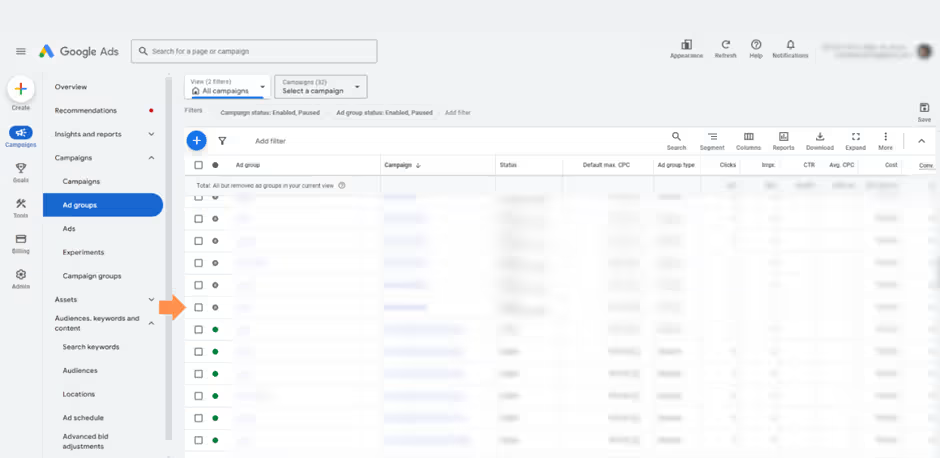
In some cases, your campaign may be running, but the ad group itself is not active. When the ad group is paused or not running, your campaign will not generate any impressions.
5. Ad
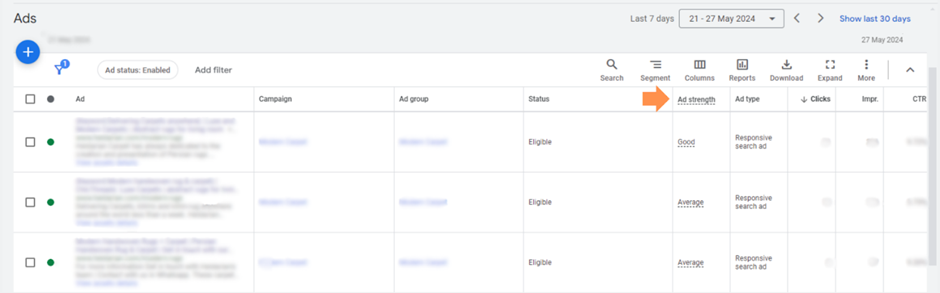
Ads are the core element of your Google Ads campaign. Without an ad, your campaign has nothing to serve—therefore, it will receive no impressions. Always make sure that each campaign contains at least one active ad. For better performance, avoid relying on just a single ad. It is recommended to create three ads per ad group to give Google more variations to test and optimize. Another point to consider is Ad Strength. We recommend keeping this score at least at Average, and gradually improving it to Good and eventually Excellent for the best results.
You can also use the Ad Preview and Diagnosis tool in your dashboard to check whether your ad is appearing for specific search keywords. Simply go to the Tools section, click on Ad Preview and Diagnosis, and enter the keyword or search phrase you want to test. Make sure to adjust the Location and Language settings to match the targeting of your campaign.
A common question is: “Why doesn’t my ad appear in Ad Preview?”
This tool is designed to show advertisers how their ads would appear in real search results. It simulates the search results page without affecting your campaign performance or causing additional impressions.
The Ad Preview tool is located under the Tools menu, and you can access it by selecting Ad Preview and Diagnosis.
However, in Iran, this tool often does not display the ad correctly and usually shows the error: “Your ad isn’t showing.”
6. Errors and Ad Disapproved
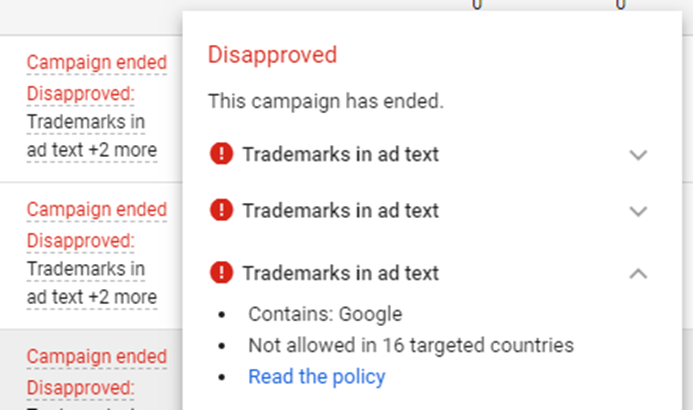
Several types of errors can limit or completely stop your ad from showing. Some of the most common issues include:Trademarks
This is one of the most frequent reasons. Google Ads has strict policies regarding the use of trademarks in ads. In general, you are not allowed to use someone else’s trademark in your ad text or keywords without proper authorization. If you do, your ads are likely to be disapproved.
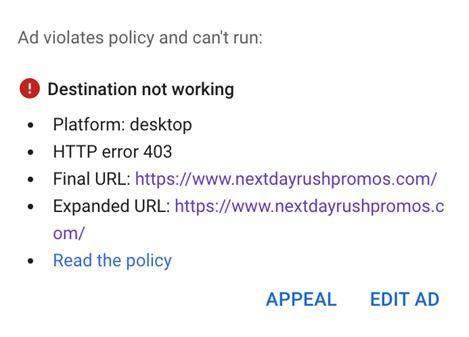
Another very common error is Destination Not Working.
You will see this disapproval when your URL is not functioning properly—meaning the link is broken, the page does not load, or the destination cannot be reached.
In some cases, the issue is simply a typing mistake in the URL you manually entered. In such situations, all you need to do is correct the spelling and resubmit the ad.
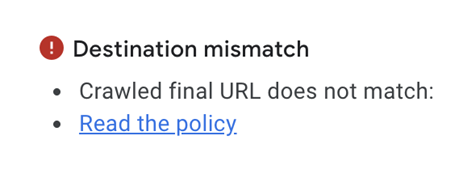
Destination Mismatch
This error usually occurs when the final URL of one ad does not match the final URLs of the other ads within the same ad group. The solution is simple: review all URLs in that ad group and make sure they are the same. Keep in mind that different campaigns can have different final URLs, but each ad group must use a single, consistent final URL.
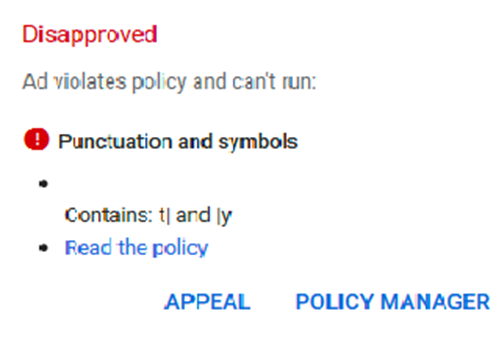
Punctuation and Symbols
This policy requires advertisers to ensure that their ad text is grammatically correct and free from excessive or unnecessary symbols. Google Ads enforces this rule to maintain clarity, readability, and a professional user experience across all ads.
7. Keywords
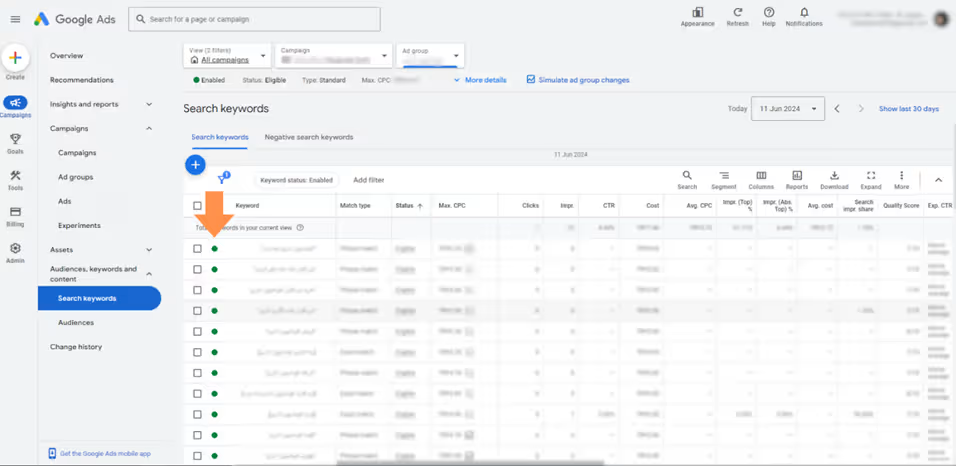
First, make sure the keyword is running. Then check the Status of the keyword to ensure it is not marked as Low search volume. When a keyword has this status, it means the term has very little search activity, and the likelihood of users searching for it is low. As a result, these keywords typically receive very few impressions, often close to zero.
8. Available Fund (Account Balance)
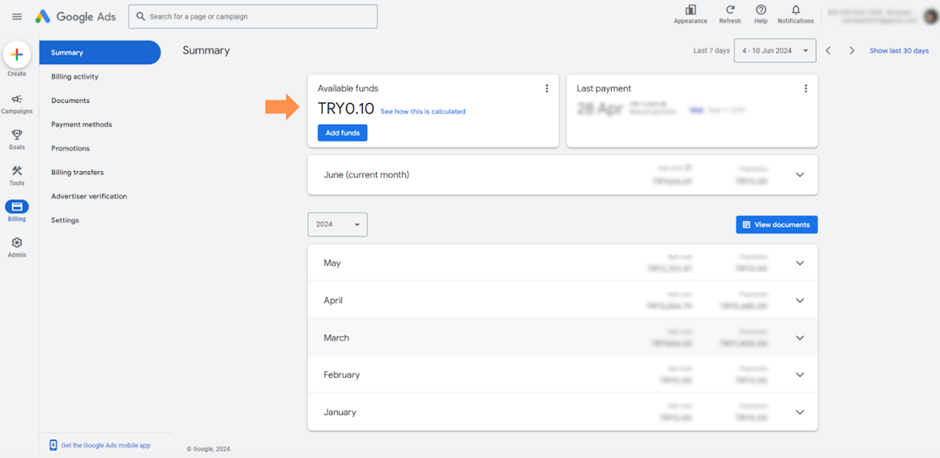
Another important factor to check is your account balance. To review your available funds, go to the Billing section and then open Summary to see the Available Fund amount. A low or depleted balance can reduce your impressions for the day or even drop them to zero. Keep in mind that the data displayed on the dashboard is not always updated in real time. You may see an amount listed as your remaining balance, but your actual credit might already be exhausted. The dashboard number may simply not have refreshed yet.
9. Advertiser Verification
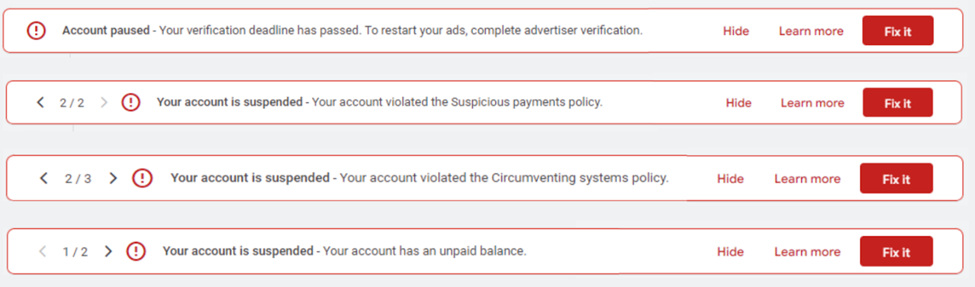
Advertiser Verification is a requirement that Google Ads has recently started enforcing for almost all accounts. If you fail to submit the requested documents within the specified time frame, your account will be paused, which will stop your ads from showing. In more severe cases, your account may even be suspended due to policy violations or failure to provide the required verification documents—both of which will result in zero impressions.
10. Bid
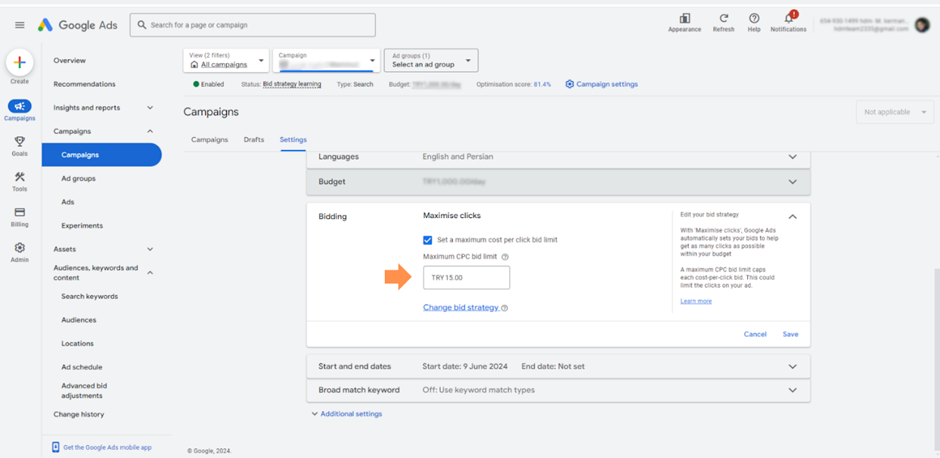
If your bid is set too low, your campaign may receive very few impressions—or in some cases, no impressions at all. If the campaign is using the Maximize Clicks bidding strategy, simply go to the Settings section at the campaign level and click on Bidding to review or adjust your bid limit.
If the campaign is using Manual CPC, you can easily adjust the bid for each keyword by going to the Search Keywords section and updating the Max CPC column for every individual keyword.
In Persian-language campaigns, the minimum bid required for impressions is usually around 0.1 TRY.
11. Budget
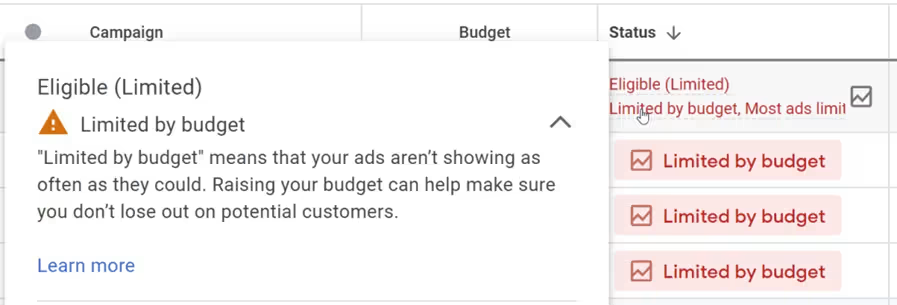
Sometimes your ads may receive limited impressions because the daily budget you’ve assigned is too low. When the budget is insufficient, Google Ads will restrict your ad delivery in order to optimize spending throughout the day. As a result, your impressions may drop significantly.
There are also additional factors related to a low budget that can affect your ad delivery.
One of the most common issues is having a small budget compared to the large number of keywords in the campaign, which can create delivery limitations.
In other cases, high keyword bids may also cause restrictions. When this happens, you will see Lost IS (Budget) at the campaign level.
Sometimes, this impression loss due to low budget (Lost IS by Budget) happens because many of your keywords are using Broad match. Keep in mind that this can reduce the volume of impressions you are eligible to receive, also known as your Eligible impressions.
12. Bid Adjustment
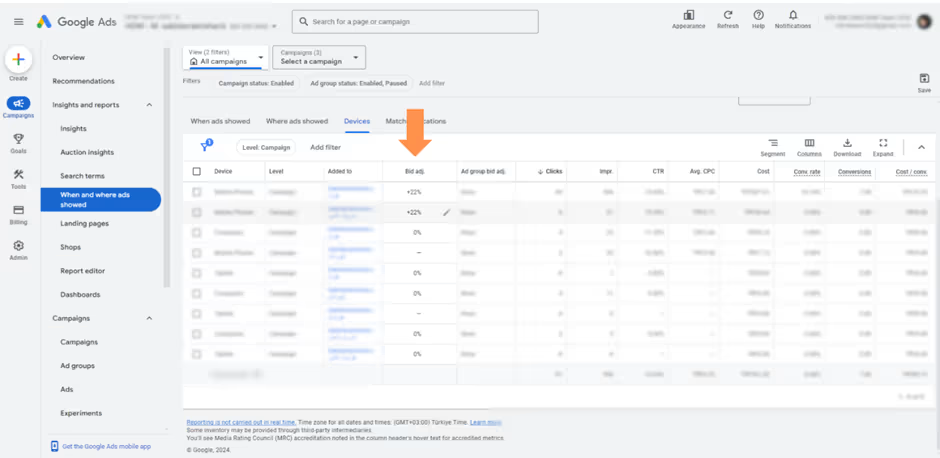
Excessive or improper use of bid adjustments can stop your campaign from showing in three ways:- Setting a very low or disproportionate bid adjustment reduces your Ad Rank and prevents your ads from showing. In other words, when your Ad Rank is not high enough, you will not receive impressions.
- Setting an excessively high bid adjustment leads to Lost IS (Budget), since your costs escalate and your budget becomes insufficient.
- Setting a 100% device bid adjustment, which completely eliminates delivery on that device. For example, if you accidentally set mobile device adjustments to 100%, your ads will receive zero impressions on mobile.
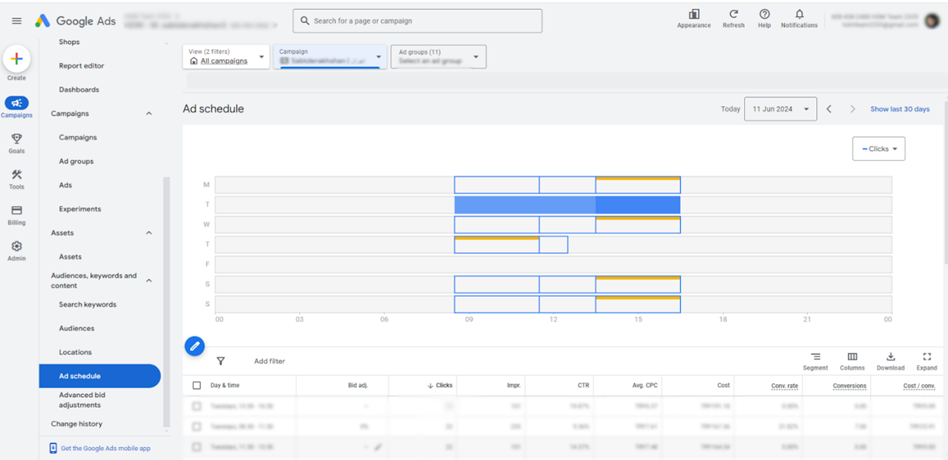
13. Ad Schedule
With Ad Schedule, you define a specific time range during which your ads are allowed to appear. For example, you may want your ads to show only on certain days or during specific hours of the day. Be aware that your selected schedule can directly affect your impressions. In many cases, advertisers set an extremely narrow schedule, such as only one or two hours per day, which can result in very limited or even zero impressions. Another important point: If there is no search activity during the time range you selected, meaning your target audience is not searching at those hours, your ads will naturally receive no impressions. By default, Google Ads campaigns are configured to show ads “All day.”
14. Negative Keywords
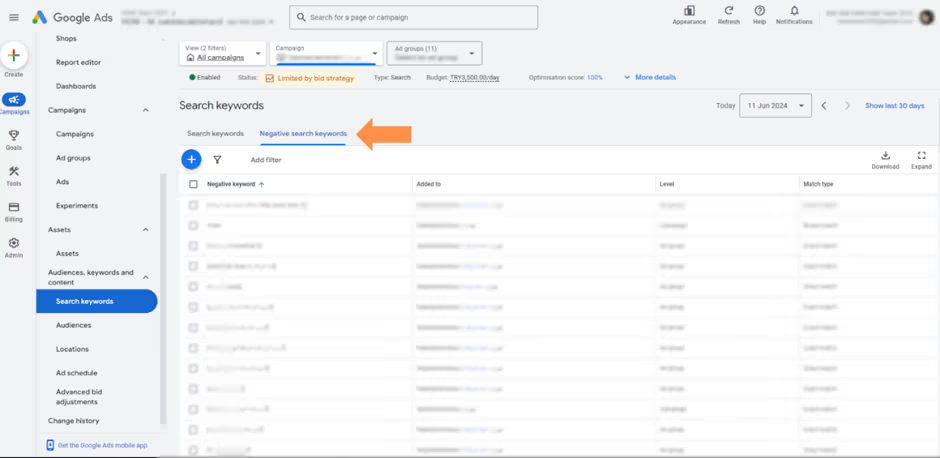
If your negative keywords overlap with your main keywords or if they are configured incorrectly (for example, using the wrong match type), they can prevent your ads from showing. The issue occurs when you add negative keywords that conflict with your primary search intent. In such cases, the negative keywords block the incoming traffic that your campaign is supposed to capture, resulting in reduced or zero impressions. To review this, go to the Search Keywords section and then click on Negative Search Keywords to double-check the negative terms added to the campaign.
15. Language
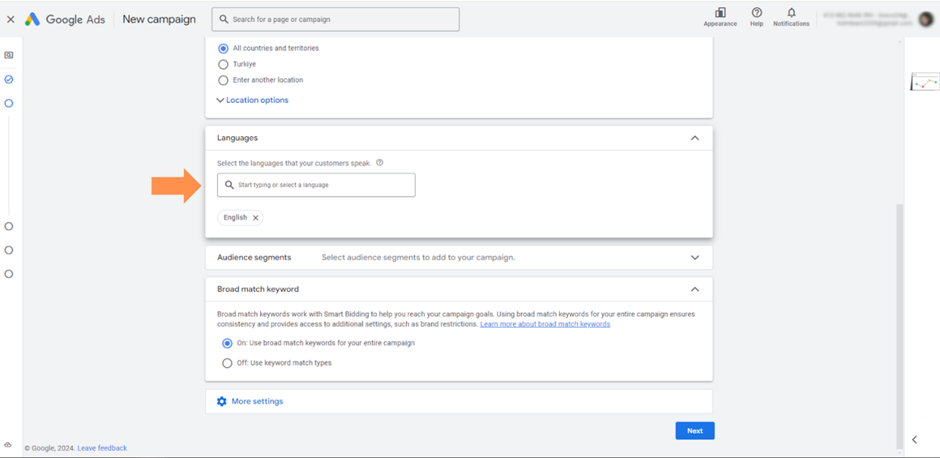
This is a setting you must configure correctly when creating the campaign because it cannot be changed later. In Google Ads, the Language setting refers to the language of the user’s device or browser, not the language of the ad itself. For example, most devices used by Iranian users are set to Persian (Farsi) or English, so both languages should be included. If you select only Persian, your campaign may face limitations, because many users search with devices set to English even if they type keywords in Persian.
Make sure to also include the language of the country you are targeting.
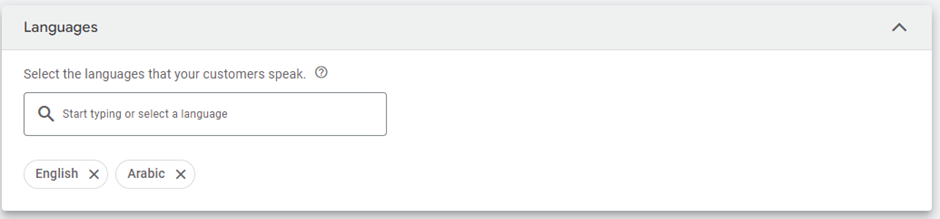
For example, if the target location of your campaign is the United Arab Emirates, you should add Arabic as well, since many users’ devices in that region are set to Arabic.
16. Quality Score
If your Quality Score is very low, typically below 5, it can significantly limit your impressions. A low Quality Score indicates that your ad relevance, expected CTR, or landing page experience is weak, which reduces your ability to enter auctions and therefore decreases your visibility.
Some of the most important factors that affect your Quality Score are Expected CTR (Exp. CTR), Landing Page Experience, and Ad Relevance.
Also note that at the beginning of a campaign, your keywords typically do not have a Quality Score, and this field will appear as a dash (—) until enough data is collected.
17. Location / Exclusions
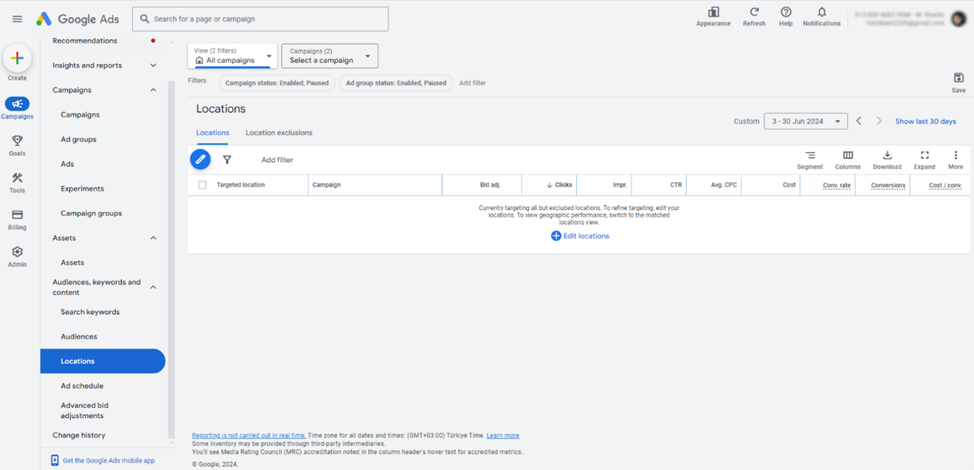
Locations are another factor that can limit—or completely stop—your impressions. This can happen when you target a country or region where your product or service is restricted or illegal, resulting in zero visibility. Another common issue occurs when using Radius Targeting. If you target a radius that Google cannot serve, such as targeting Tehran with a radius circle, you may receive no impressions at all, because radius targeting is not supported for many Iranian regions. Additionally, if you have not selected a target country at all, you must carefully review the Excluded Locations. You may have excluded a country whose exclusion directly affects your ad delivery and prevents your campaign from showing.